Create a Package
Use Package to create and maintain tours shown on the public website.
In the admin, the menu says Package. On the public website, customers usually see this content as a Tour.
Before you start
Section titled “Before you start”Prepare the main information first:
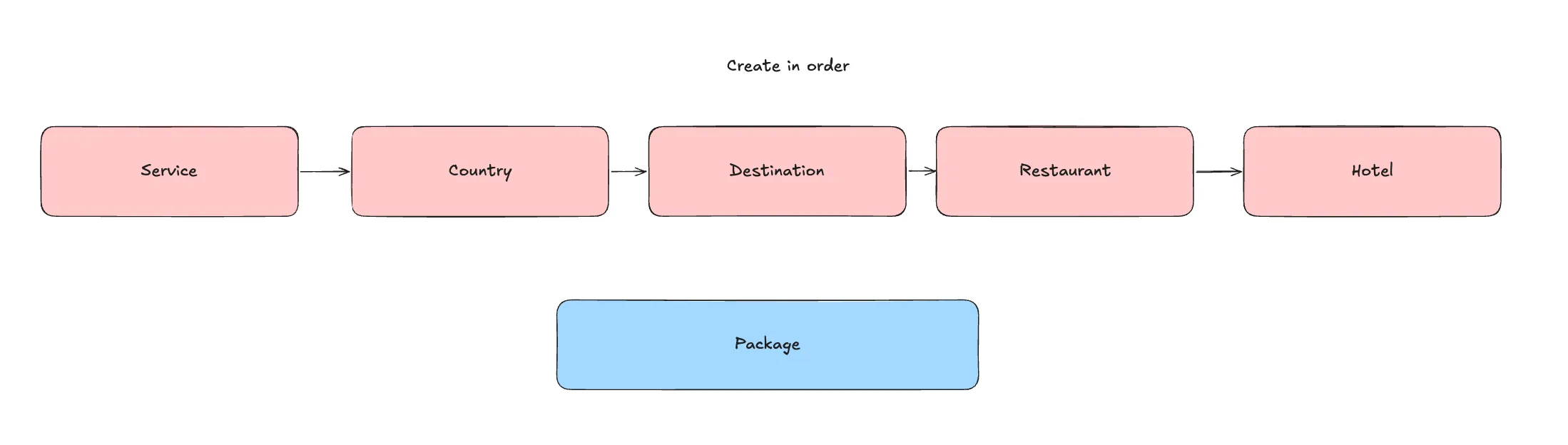 Since package required info such as:
- Country
- Service
- Destination
- Restaurant
- Hotel So, we must make sure these info are available.
You can save a package as draft before everything is complete.
Create the draft
Section titled “Create the draft”- Open Package from the left navigation.
- Click New package.
- Stay on the Basics tab.
- Fill the required setup fields.
- Keep Status as draft.
- Click Save.
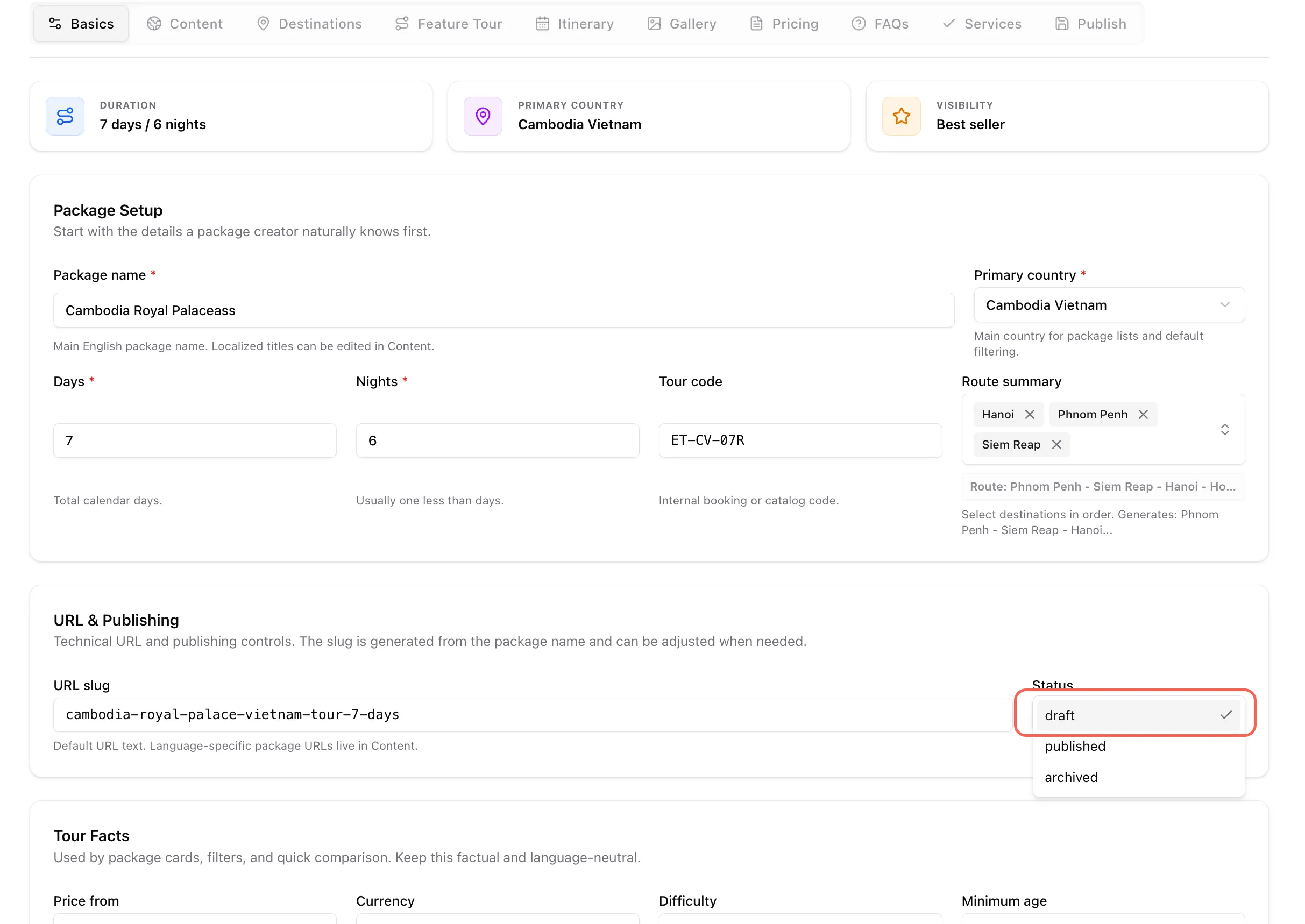 Saving early creates the package record and helps avoid losing work while adding the longer content sections.
Fill Basics
Section titled “Fill Basics”Start with the fields that control package identity, filtering, and cards.
Required or strongly recommended:
- Package name: English package name.
- Primary country: Main country used for package lists.
- Days: Total calendar days.
- Nights: Usually one less than days.
- URL slug: Generated from the package name; adjust only if needed.
- Featured image: Main image used on cards and public page previews.
- Countries in package: Add every country included in the tour.
Optional but useful:
- Tour code
- Route summary
- Price from
- Currency
- Difficulty
- Minimum age
- Tour format
- Themes
- Sort order
- Featured package
- Best seller
Add content
Section titled “Add content”Open the Content tab.
For English, fill:
- Title
- Localized slug
- Subtitle
- Route summary
- Best time to visit
- Marketing type label
- Summary
- Overview rich text
English should be completed first because it is the main source content.
Add other languages only when the translation is ready enough to publish.
Add destinations
Section titled “Add destinations”Use this tab to connect the package to destinations. After applied it will appear in Featured Tour on the website
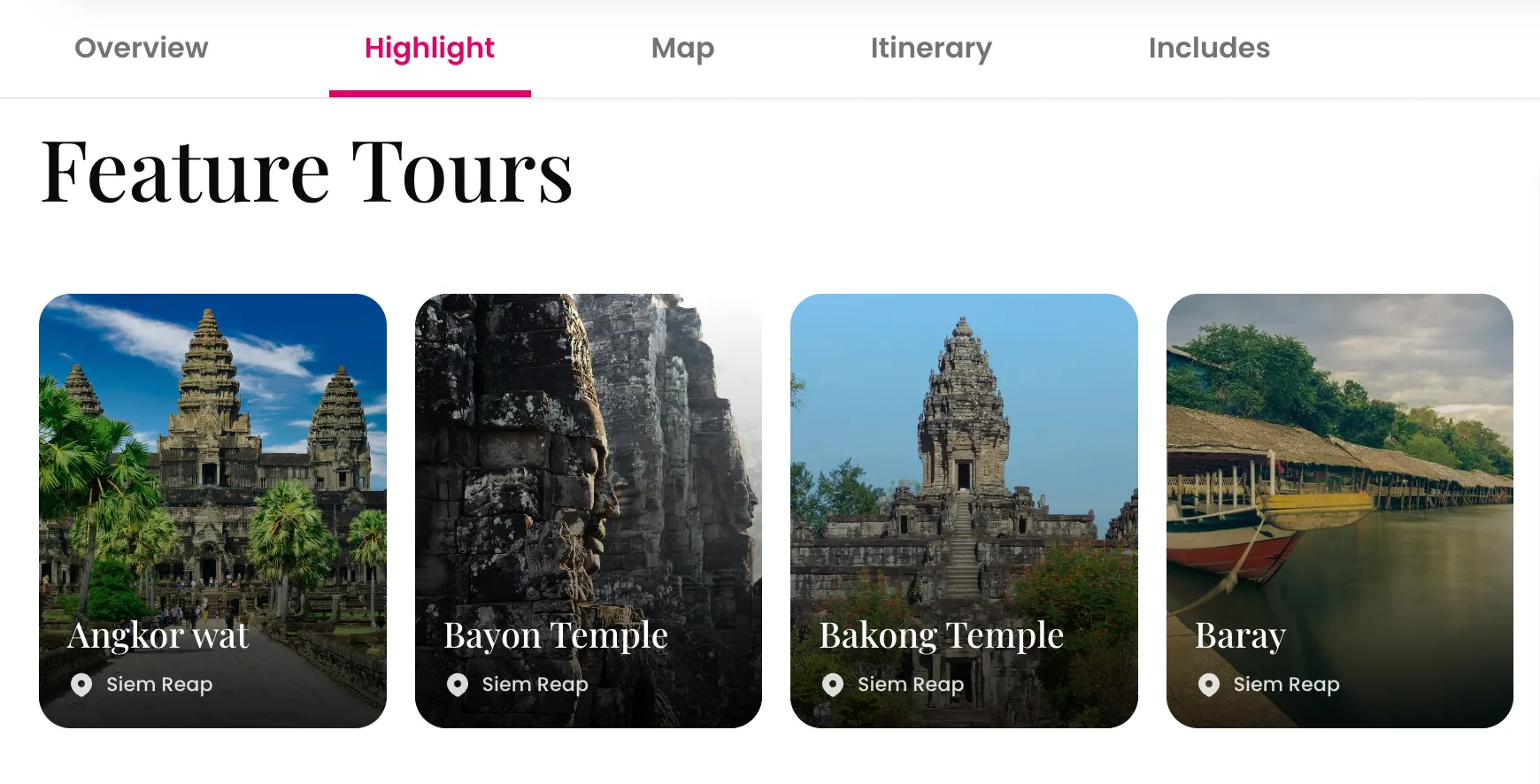
Add feature tour places
Section titled “Add feature tour places”Open the Feature Tour tab.
Use this for important places or highlights that should appear as feature-tour content on the public package page.
This is optional. Skip it if the package does not need highlighted places yet.
Build itinerary
Section titled “Build itinerary”Open the Itinerary tab.
Add each day in order.
For each day, add:
- Day number
- Sort order
- Day title
- Day body content
- Day image, if available
- Places, if relevant
- Hotel, if relevant
- Restaurant, if relevant
- Day items, such as activity, meal, flight, note, or custom item
Save regularly while building the itinerary.
Add gallery images
Section titled “Add gallery images”Open the Gallery tab.
Use gallery images for supporting photos beyond the featured image.
Good gallery images should:
- Show actual destinations, hotels, food, culture, nature, or activities.
- Be clear and high quality.
- Have useful alt text or an alt override when needed.
Add package FAQs
Section titled “Add package FAQs”Open the FAQs tab.
Add questions that apply only to this package.
Examples:
Can this tour be customized?Is this tour suitable for families?What kind of hotels are included?Can we change the travel dates?
Do not duplicate general company FAQs unless the answer is specific to this package.
Add services
Section titled “Add services”Open the Services tab.
Use services to show what is included and excluded.
Common included services:
- Accommodation
- Local guide
- Private transport
- Entrance fees
- Meals listed in itinerary
Common excluded services:
- International flights
- Travel insurance
- Visa fees
- Personal expenses
- Optional activities
Save the draft
Section titled “Save the draft”Click Save after finishing each major section.
If validation fails, read the error message and complete the missing required fields.
Common blockers:
- Missing package slug
- Missing English title or summary
- Missing country assignment
- Invalid duration
- Missing featured image
Publish later
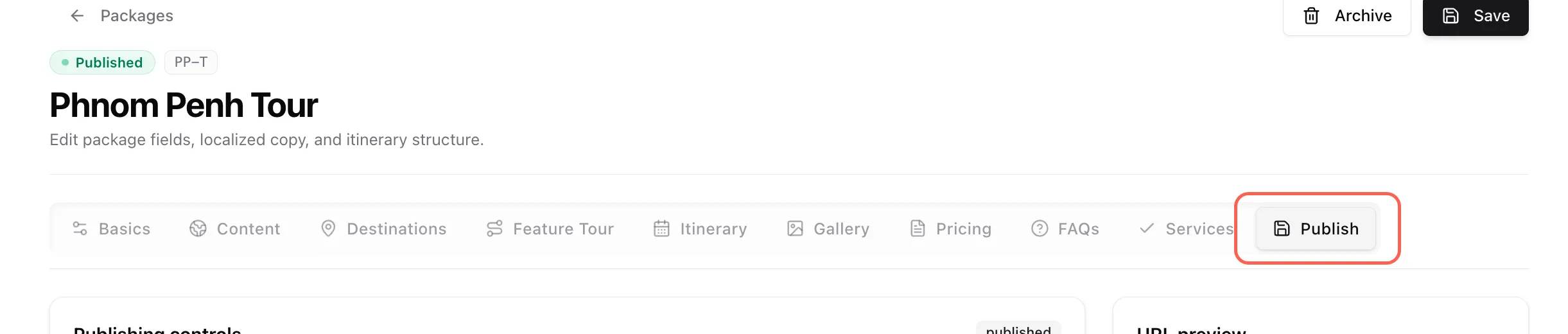
Section titled “Publish later”Use the Publish tab only after the package content is ready.
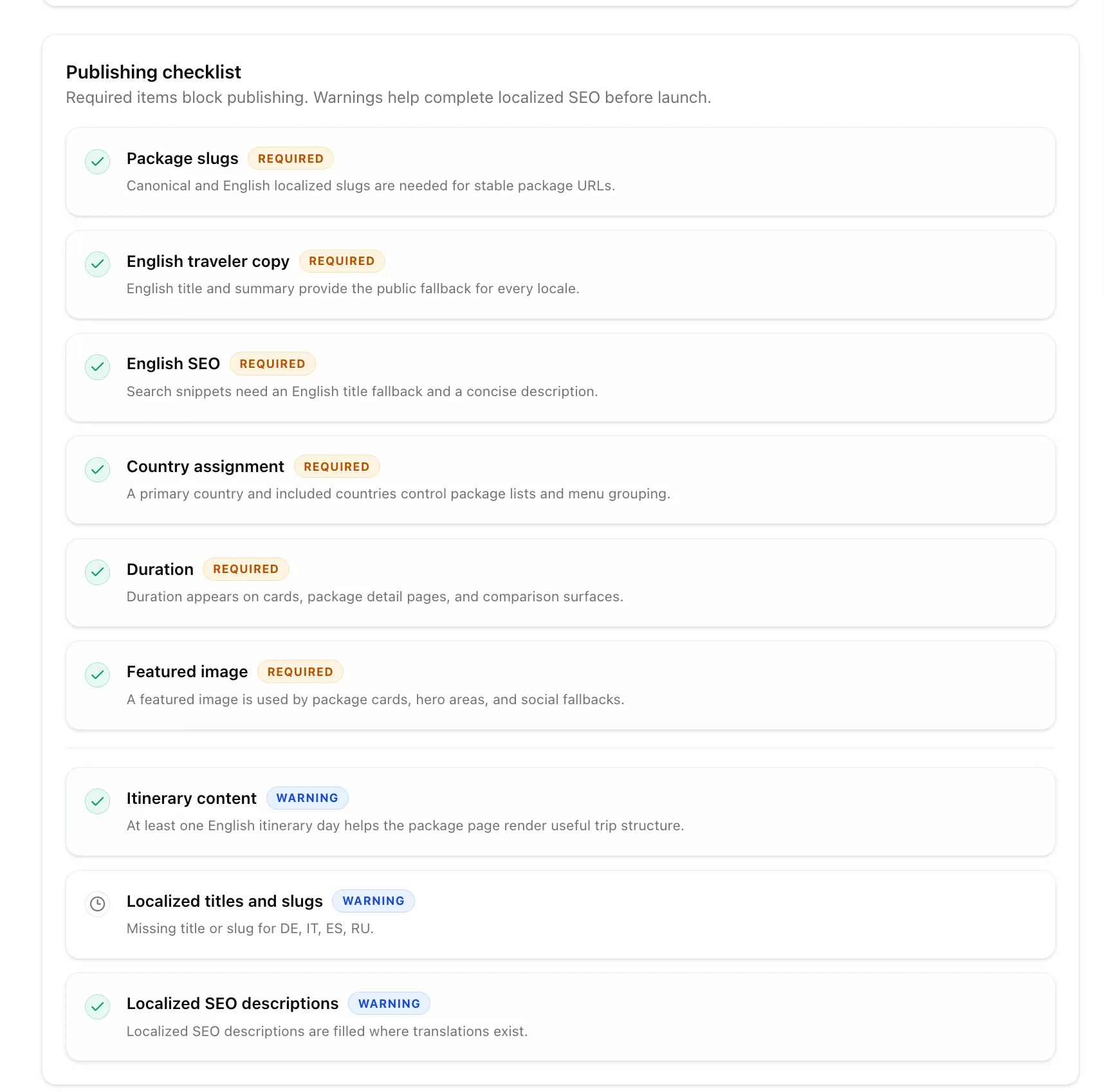
Before publishing, check:
- English traveler copy is complete.
- Primary country and included countries are correct.
- Duration is correct.
- Featured image is selected.
- Itinerary is complete enough for customers.
- Services are correct.
- Public URL preview looks right.
You can also check the provided checklist