
Check Enquiries
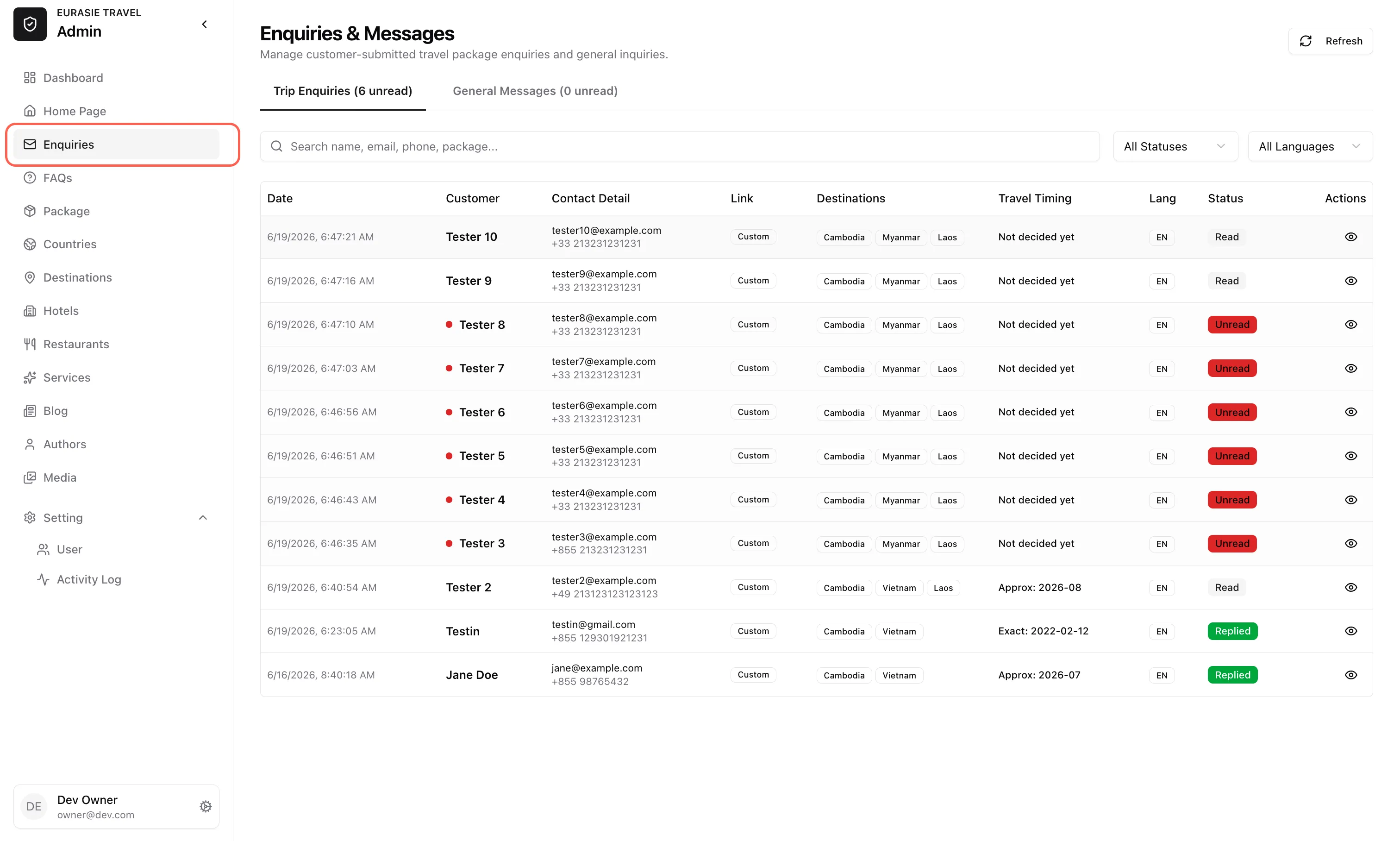
When user send a inquiry through Plan a Trip or Contact, it will appear in Enquires
There are two types of messages:
| Tab | Use it for |
|---|---|
| Trip Enquiries | Tour-specific enquiries and custom trip requests. |
| General Messages | Contact form messages that are not tied to a specific tour request. |
Automatic emails
Section titled “Automatic emails”Two emails are sent the moment a form is submitted, before anyone on the team touches the item:
- The customer gets a confirmation in the language of the page they used, with a summary of what they sent and a note that we reply within 24 hours on working days.
- The team inbox gets an English notification with all details. Replying to that notification answers the customer directly.
So the first follow-up is never “we received your message” — it should be the actual answer or proposal.
Daily workflow
Section titled “Daily workflow”- Open Enquiries from the left navigation.
- Click Refresh to load the latest enquiries and messages.
- Review the unread count on each tab.
- Open each unread item.
- Contact the customer by email or phone.
- Add an internal note about the follow-up.
- Change the status to Replied after the team has responded.
- Archive old items when they no longer need active follow-up.
Status meaning
Section titled “Status meaning”| Status | Meaning | When to use it |
|---|---|---|
| Unread | New item that has not been opened yet. | New customer request. |
| Read | The team has opened and reviewed it. | Use while deciding the next action. |
| Replied | The team has responded to the customer. | Use after email, phone, or WhatsApp follow-up. |
| Archived | No active follow-up needed. | Use for completed, duplicate, or old requests. |
Opening an unread item marks it as Read automatically when your account has edit permission.
Add internal notes
Section titled “Add internal notes”Use Internal Staff Notes to record team-only follow-up details.
Good notes include:
- Who replied
- When the customer was contacted
- Which channel was used
- What the customer asked for
- Next action needed
Example:
Replied by email on 30 Jun.Customer wants private Cambodia itinerary for 2 adults in October.Waiting for preferred hotel level.Internal notes are not shown to the customer.
Mark as replied
Section titled “Mark as replied”After responding to the customer:
- Open the enquiry or message.
- Confirm the response was sent.
- Add an internal note.
- Click Mark as Replied.
Do not mark an item as replied before the customer has actually been contacted.
Archive old items
Section titled “Archive old items”Archive an item when:
- The request is complete.
- The customer no longer needs follow-up.
- The item is a duplicate.
- The item is no longer relevant.
Archived items stay in the system for reference.